My translations
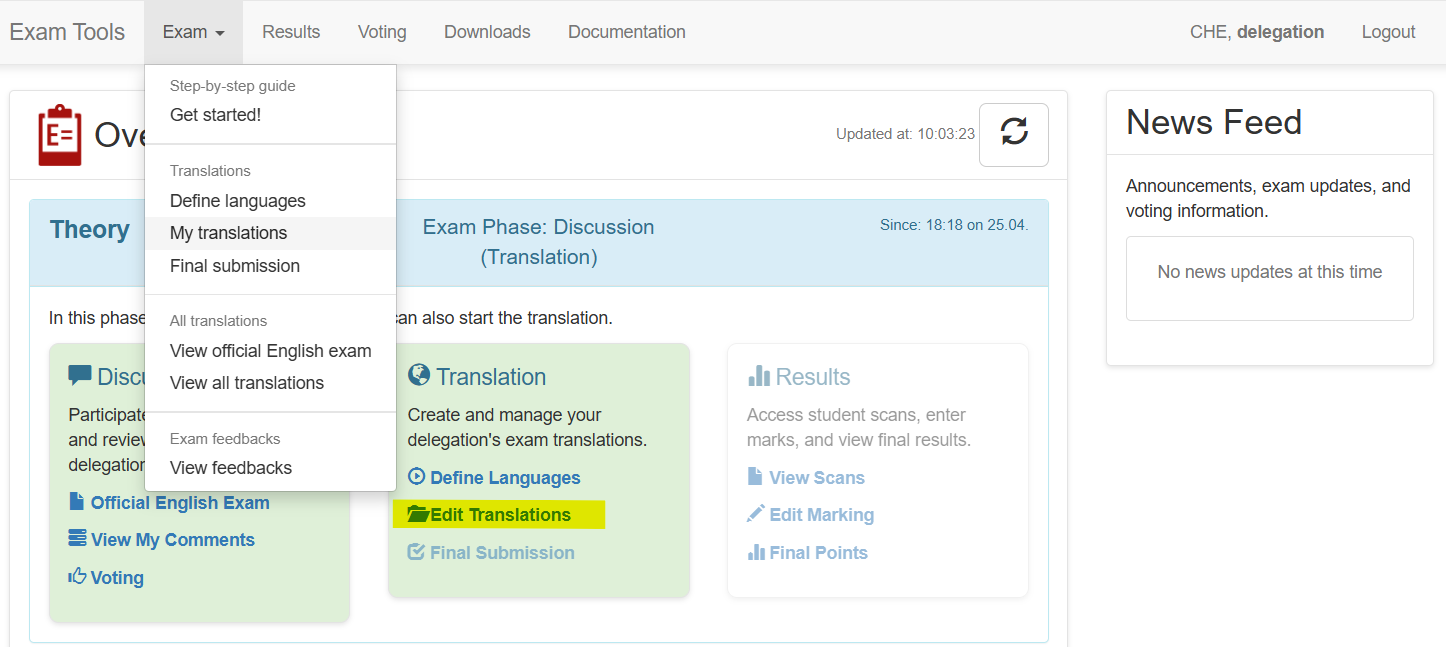
Overview of translations
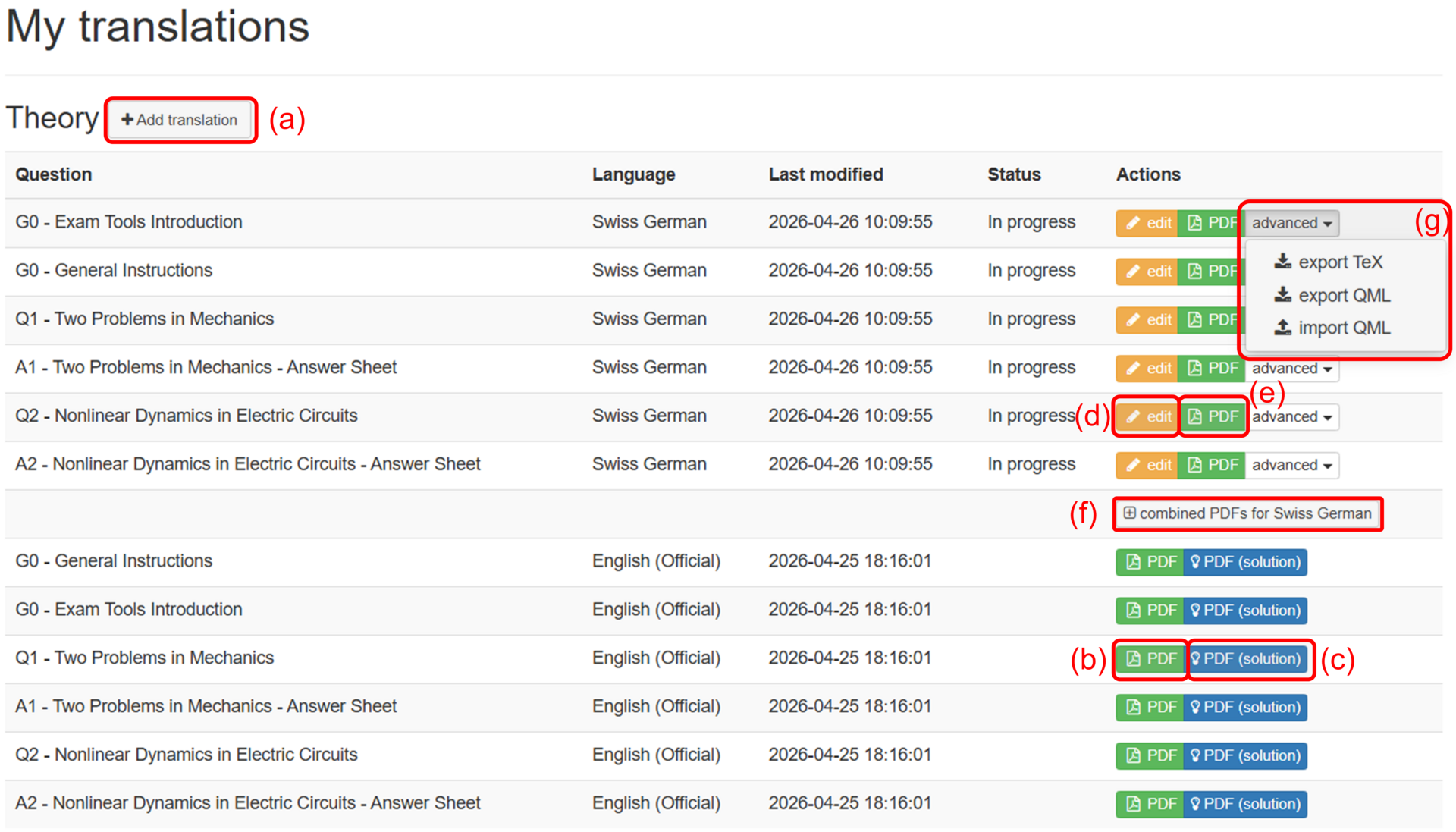
On the overview page you can add new translations (a), see (in read-only mode) the official version of the questions (b) and solutions © if available, edit your translations (d) and see their printable version (e), generate PDF for complete exam (f). If your language is a PDF language (a setting of the language), the button for the PDF only works after you uploaded a PDF for the question, and only PDF files can be uploaded. The button TeX next to the upload button downloads the empty TeX resources of the question (question.tex with empty blocks, the class file, the figures and the fonts): fill in your translation, compile it with LuaLaTeX on your own machine (lualatex question.tex, the README.txt in the download says how) and upload the PDF. You can export into TeX and/or QML, import QML in advanced settings (g).
Add new translation
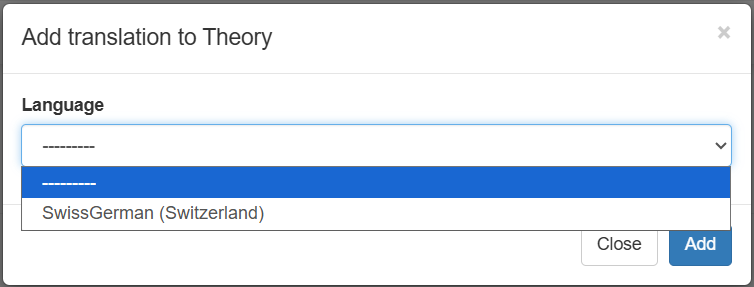
With the Add translation you start the translation of an exam in one of your languages. When clicking on the button, you get the following panel.
Compare with another language
For delegations that translate into very similar languages (e.g. Australian English from Official EN or Dutch and Vlaams) it can be useful to compare different languages. For this we offer the possibility of generating a latexdiff-pdf from the language overview => Compare. It will show the deleted text in red and the added text in blue. Of course, this feature only works if the compared languages are similar, e.g. German and Chinese cannot be compared.